Getting started with your Dashboard
AirWayfarer is your interactive flight logbook. Your personal Dashboard centralizes all your journeys, automatically calculates kilometers traveled, charts your routes on an interactive map, and generates detailed statistics about your flying habits.
To bring your Dashboard to life, simply follow 3 easy steps: create a travel, record your flights, and explore your statistics. Follow the guide!
Step 1: Create Your First Travel
On AirWayfarer, every flight belongs to a travel (a getaway, holidays, or a business trip). Before adding a flight, start by creating the travel it belongs to:
- Log in to your personal account.
- From your backoffice navigation, click on the Travels section.
- Click on the Add a travel button.
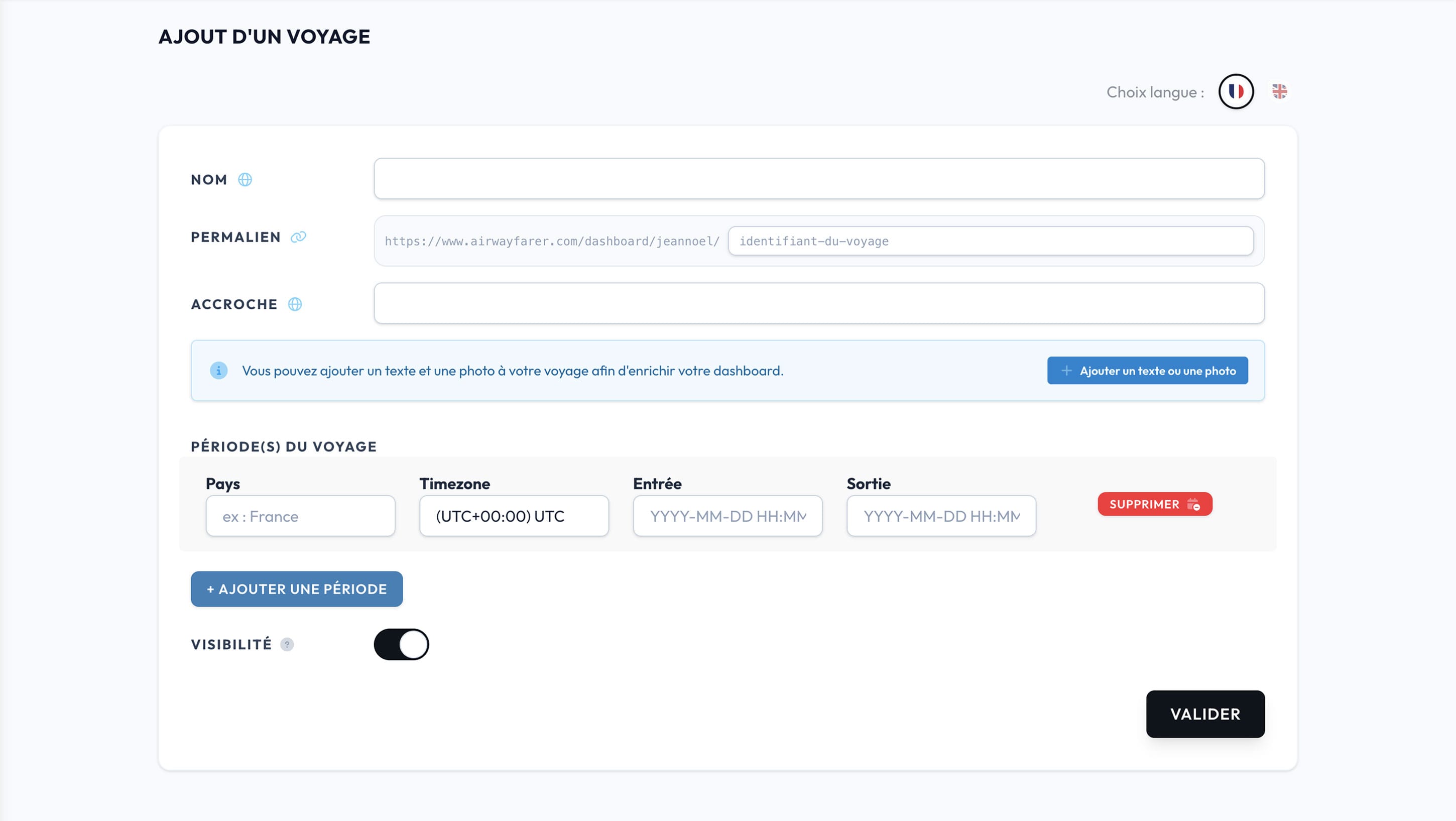
- Give your travel an inspiring title (e.g. "Japan Roadtrip" or "Italian Getaway").
- Select the visited countries along with your stay dates (this data feeds your country podium and time spent calculation). Don't forget the timezone.
- If you prefer not to display the travel in your public list while still counting its data in your statistics, turn off its visibility before saving.
- Click on Save.
Step 2: Add Your Flights
Your travel is created! You can now link your different flights to it (outbound, layovers, domestic flights, return):
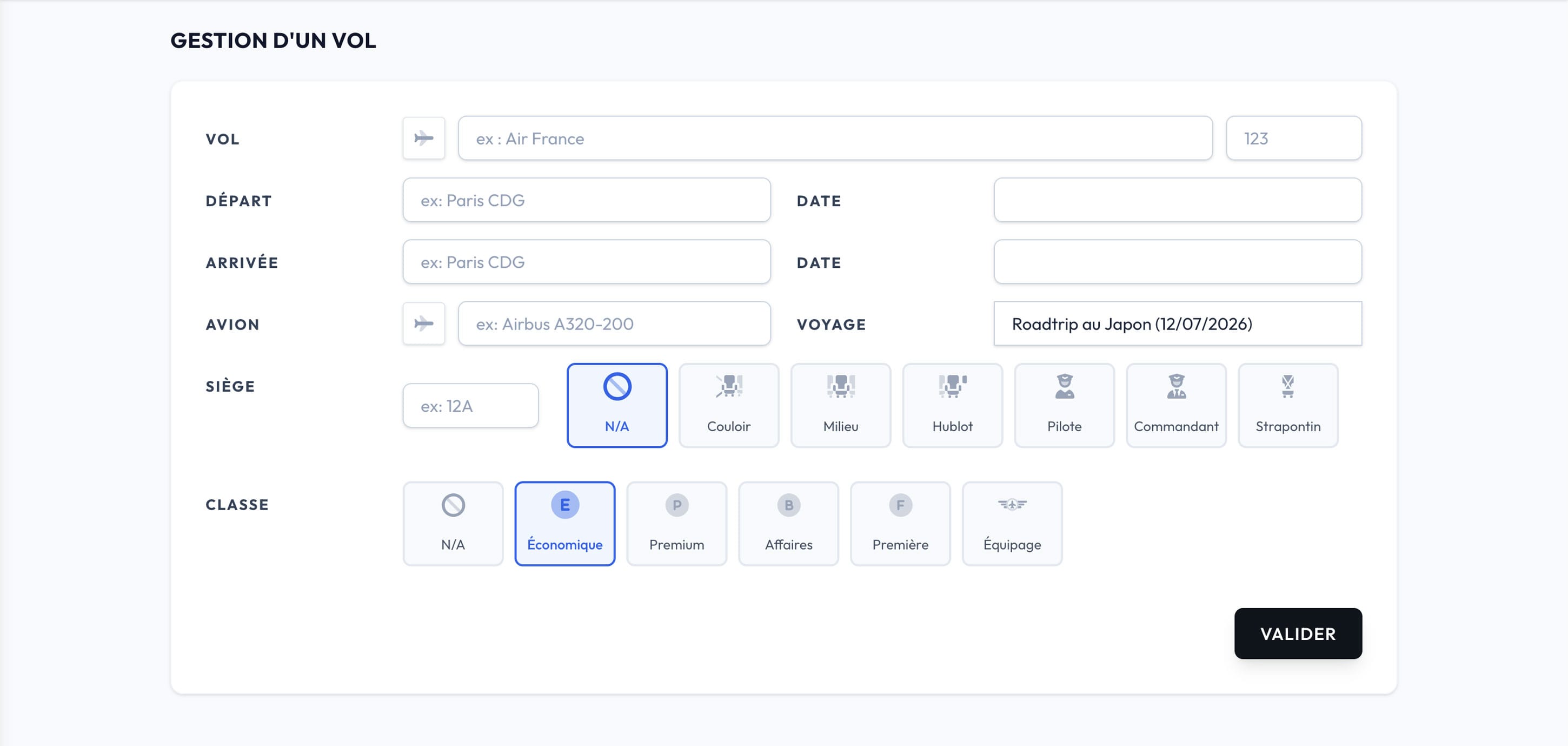
- In the menu, click on Flights and then on Add a flight.
- Select the travel created in the previous step.
- Enter the departure airport and arrival airport using auto-completion (by city name or IATA code, e.g. CDG, HND, JFK).
- Enter departure and arrival dates and times, as well as the airline and flight number.
- (Recommended) Add comfort details: aircraft model (Airbus A350, Boeing 787...) and your seat position (Window, Aisle, Middle).
- Click on Submit: the great-circle distance in kilometers and GPS coordinates are calculated automatically!
Step 3: Explore Your Interactive Dashboard
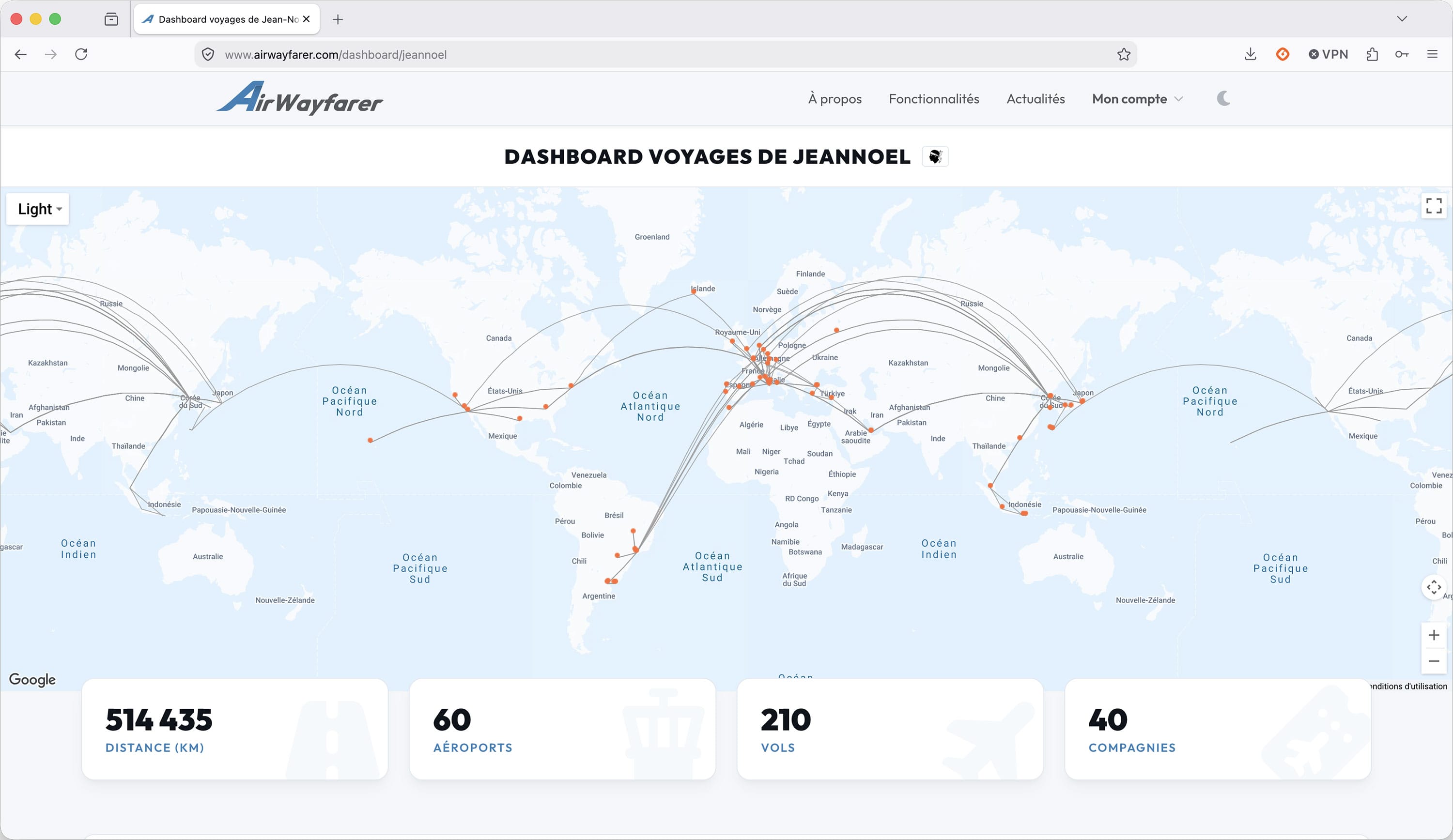
Hover over your name in the top right corner, click on View my dashboard, and discover your personalized flight universe:
- Interactive World Map: view your flight routes charted across the globe. Zoom in and click on any airport to display its details.
- 4 Key Metrics: total distance flown in km, number of visited airports, total flights, and airline diversity.
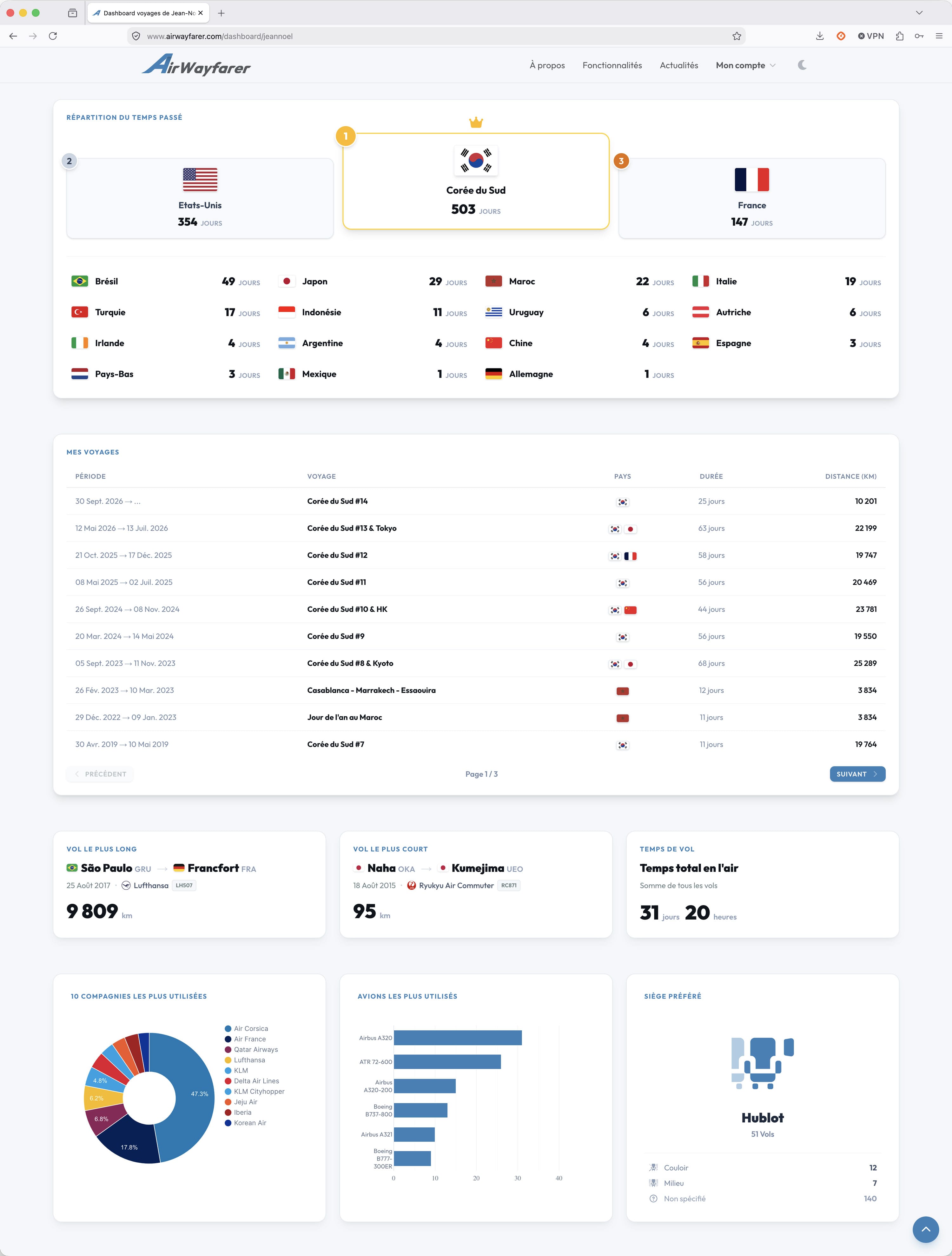
- Country Podium: rankings of the countries where you have stayed the longest.
- Your Records: your longest flight, shortest flight, and cumulative time spent in the clouds.
- Detailed Analytics: favorite airlines pie chart, aircraft family breakdown, and your preferred seat reveal (Team Window or Team Aisle?).
Tips to Go Further
- Customize your profile: Head over to My Account to set your country of residence (the flag will proudly appear next to your name on your dashboard) and choose your preferred theme (Light or Dark).
- Bring your memories to life: Add an inspiring cover photo and your stories to each of your travels to turn your statistics into a vivid, illustrated logbook ready to be shared.
- Share your adventures: Your dashboard URL is public. Share it with your friends or on social media to showcase your travel journal at a glance!